


GDPR for Cookie Bar
Turn Odoo's cookie bar into a complete GDPR solution: a popup styled to match your brand,
cookies blocked before they are set, and reports showing how many visitors accept them!
Table of contents
Application highlights
Why a cookie banner is not enough
Functionality
Configuration
How to use
Menu structure
FAQ and troubleshooting
APPLICATION HIGHLIGHTS [back]
BLOCK COOKIES BEFORE THEY ARE SET
Odoo's standard cookie bar asks for consent, but third-party scripts can still store their cookies.
This app adds a cookie blocklist that is enforced in two places: a small script that runs first in
the page, before any tracker, and on the server, where blocked cookies are removed from Odoo's own
responses. A blocked cookie never reaches the visitor's browser.
SEE HOW MANY VISITORS ACCEPT COOKIES
Every "Allow all" or "Essential only" choice is logged. The Reports menu shows the accept rate as a
graph, pivot table or list, filtered by day, week or month. Standard Odoo has no consent reporting.
IP addresses are anonymized by default.
YOUR COLORS AND TEXT, NO CODE
Set the popup colors, title and text on one settings page. The title and text can be translated
into every website language.
VISITORS CAN WITHDRAW CONSENT AT ANY TIME
After a visitor has made a choice, a small cookie icon stays in the bottom-left corner. One click
clears the consent and opens the cookie bar again, as the GDPR requires.
Why a cookie banner is not enough [back]
Under EU law, showing a cookie banner does not make a website compliant. What matters is what
actually happens in the visitor's browser, and whether you can prove it.
NO CONSENT, NO COOKIES
The ePrivacy Directive (Article 5(3)) requires consent before any non-essential cookie is
stored on the visitor's device. If analytics or marketing cookies are set while the banner is still
waiting for an answer, or after the visitor clicked "Essential only", the banner is just decoration.
The Court of Justice of the EU confirmed in the Planet49 case (C-673/17, 2019) that this applies to
all cookies, whether or not they contain personal data.
This app: blocklisted cookies are stopped before they reach the browser, from the very first
page load.
YOU MUST BE ABLE TO PROVE CONSENT
GDPR Article 7(1): the website owner must be able to demonstrate that consent was given. A banner
that leaves no record cannot do that.
This app: every choice is stored in the consent log, with time and choice, and can be
reported and exported.
WITHDRAWING MUST BE AS EASY AS GIVING
GDPR Article 7(3): visitors have the right to withdraw consent at any time, and it must be as easy
as giving it. A choice that can only be undone by clearing the browser's cookies does not meet this.
This app: the cookie icon is always available, and one click resets the choice.
"REJECT" MUST BE AS EASY AS "ACCEPT"
European data protection authorities require refusing cookies to be as easy as accepting them.
In 2021 the French authority CNIL fined Google €150 million and Facebook €60 million for
making cookie refusal harder than acceptance.
This app: "Allow all cookies" and "Only allow essential cookies" are two buttons of the same
size and color, side by side.
COLLECT ONLY WHAT YOU NEED
GDPR Article 5(1)(c), data minimisation: personal data must be limited to what is necessary. An IP
address is personal data, even in a consent log.
This app: IP addresses are shortened before they are saved (IPv4 /24, IPv6 /48), and the
cookie scanner never stores cookie values.
THE COST OF GETTING IT WRONG
Fines under GDPR Article 83 can reach €20 million or 4% of worldwide annual turnover, whichever is
higher. Cookie consent is one of the easiest things for an authority, a competitor or a visitor to
check: it takes one look at the browser's developer tools.
This description is general information, not legal advice. Which cookies you must block depends
on your website and your trackers. Check your own setup with your data protection advisor.
FUNCTIONALITY [back]
Features
- New cookie bar layout at the bottom of the page, with no dark overlay, so visitors can keep reading and scrolling.
- The Cookie Policy page opens inside the cookie bar, so the visitor doesn't leave the page they are on.
- A "withdraw consent" cookie icon in the bottom-left corner of every page.
- A cookie blocklist with three levels: block only when the visitor chose "Essential only", always block, or don't block.
- "Index cookies" button: finds the cookies your website sets and adds them to the blocklist for you. Only cookie names are saved, never their values.
- Blocking runs before any other script on the page and is also enforced on the server.
- When a visitor accepts cookies, they are allowed at once, without reloading the page.
- Consent reports (graph, pivot, list) with date and choice filters.
- IP anonymization for the consent log, on by default (IPv4 /24, IPv6 /48).
- Settings page for the popup colors, title and text.
- Multi-website: each website has its own popup settings, blocked cookies and consent reports. A blocked cookie can also apply to all websites at once.
- Only website designers and administrators can see or change the cookie settings.
- Repairs a broken consent cookie by itself. In standard Odoo, a broken consent cookie makes every page show a "500 Internal Server Error" for that visitor.
- Works with Odoo's built-in Google consent mode. Google Analytics gets the visitor's choice with no extra setup.
- Translations included: English, Finnish, German, Spanish, French, Italian and Russian.
Usage prerequisities
- The Website app installed.
- The cookie bar is switched on: Website → Configuration → Settings → "Cookies Bar".
- A published Cookie Policy page. Odoo creates
/cookie-policywhen you switch the cookie bar on; you can choose another page per website in Website settings (developer mode).
Configuration [back]
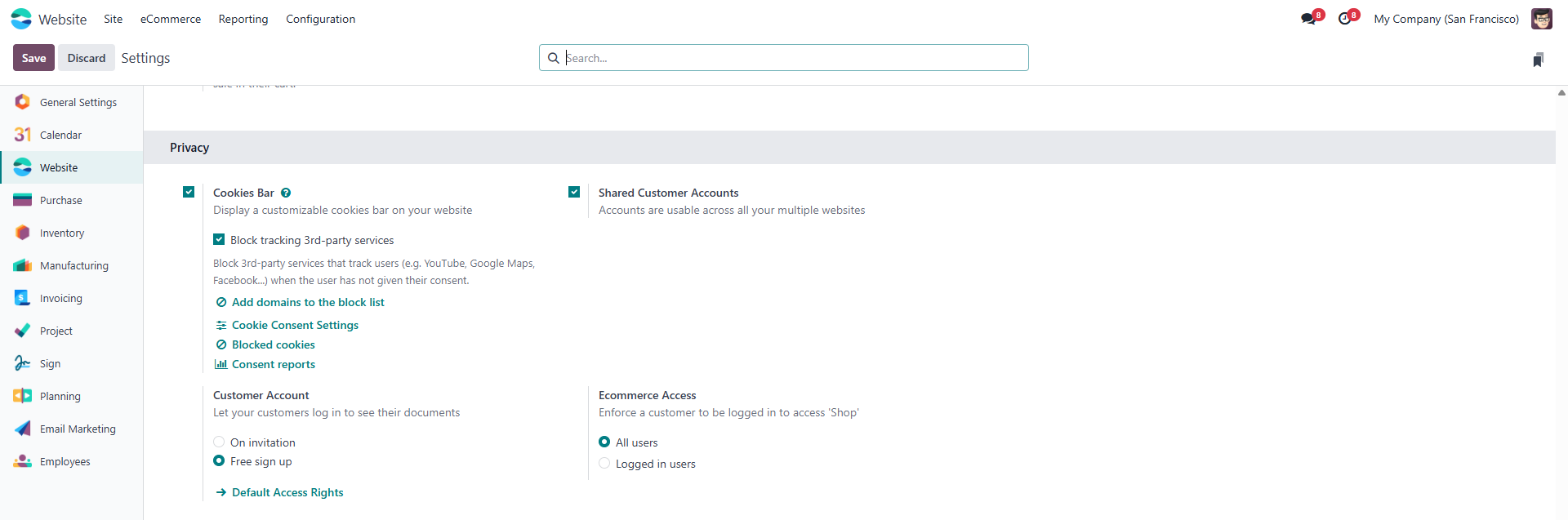
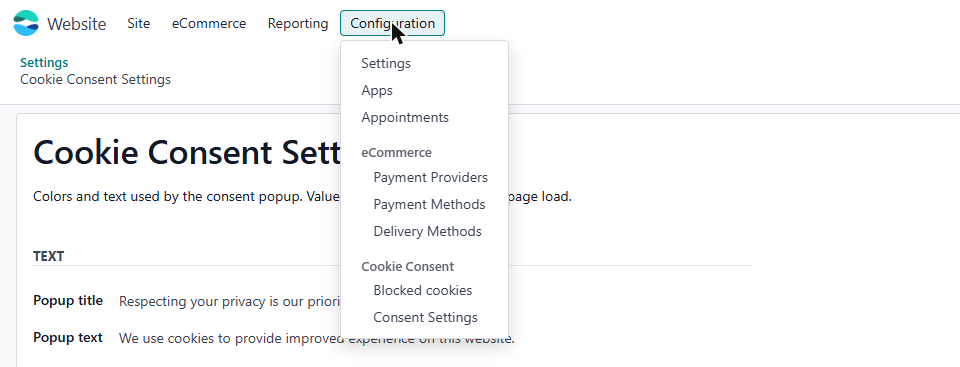
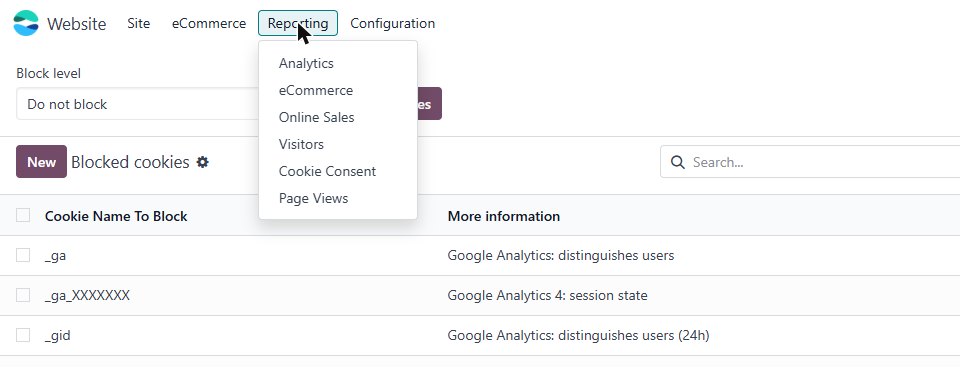
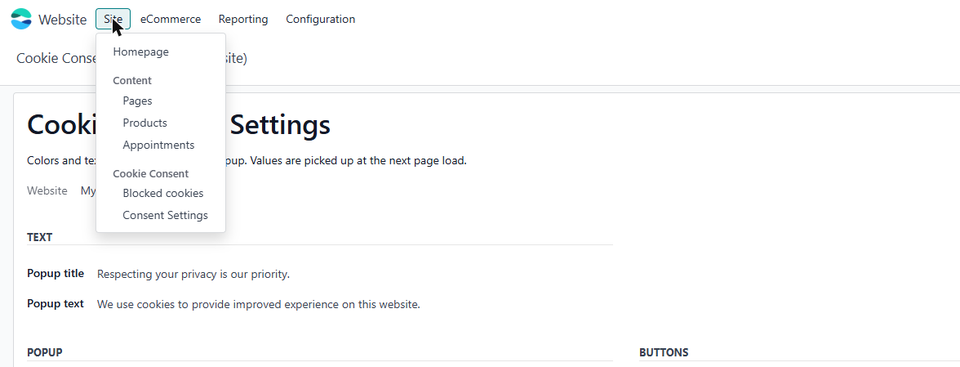
Everything is in the Website app. Go to Website → Configuration → Settings and find the "Cookies Bar" setting (in the Privacy section, or under "Tracking & SEO" in newer Odoo versions; typing "cookies" in the settings search box finds it too). When the cookie bar is on, three shortcuts are shown under it: "Cookie Consent Settings", "Blocked cookies" and "Consent reports". The same pages are also in the menus: Website → Configuration → Cookie Consent (or Website → Site → Cookie Consent), and Website → Reporting → Cookie Consent. With several websites, each website has its own settings, blocked cookies and reports: the shortcuts open the pages of the website selected at the top of the settings page. Website designers and administrators can use these pages; other users can't see or change them.
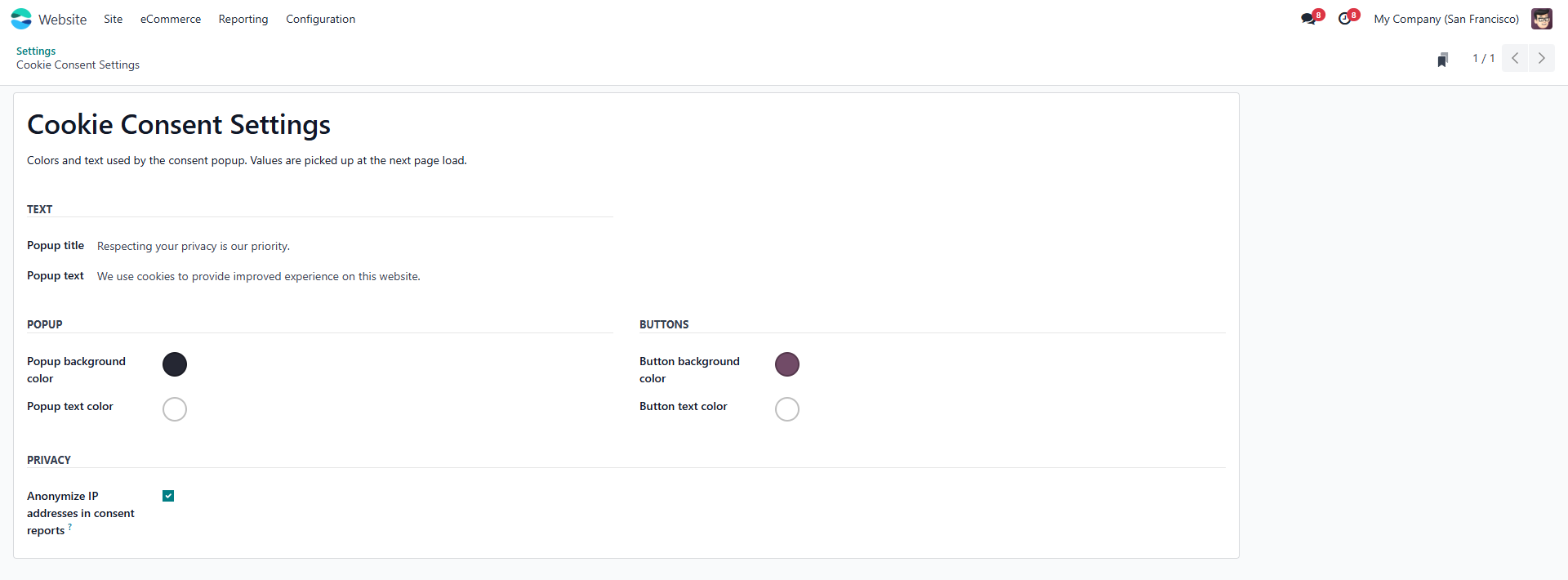
Click "Cookie Consent Settings" (or open Website → Configuration → Cookie Consent → Consent Settings). Pick the popup background, popup text, button background and button text colors. The button hover color is calculated automatically. Change the popup title and text if you want to, and translate them with Odoo's normal translation button. "Anonymize IP addresses in consent reports" is on by default. We recommend leaving it on. Each website has its own settings: the shortcut opens the settings of the website selected in Website settings, and with several websites the menu lists them all.
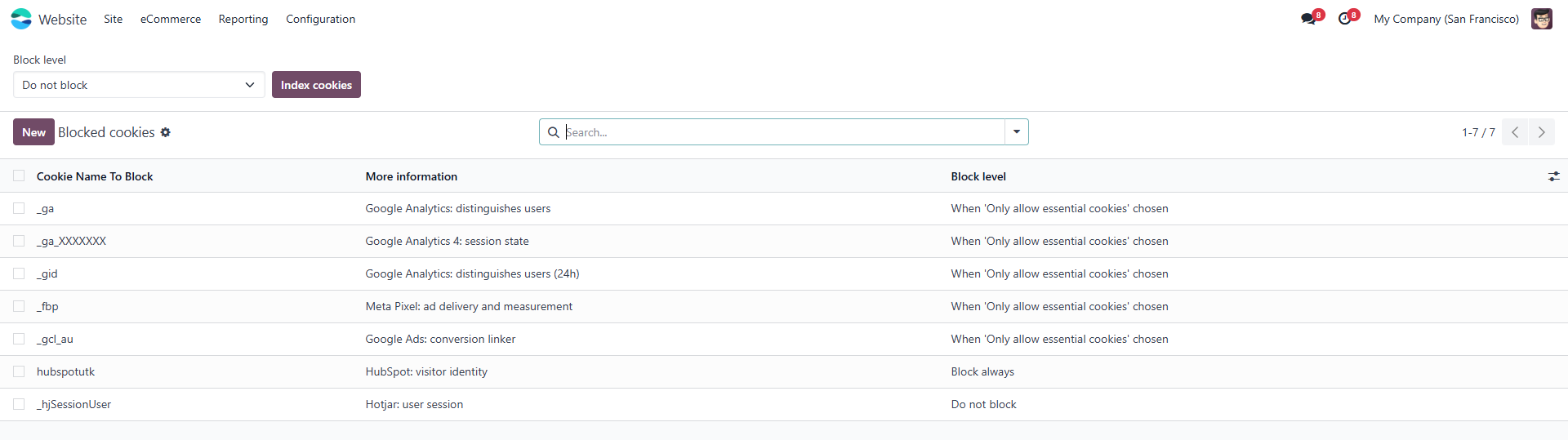
Open your website in another browser tab and click around, so that Google Analytics, Meta Pixel, video embeds and other trackers set their cookies. Then click "Blocked cookies" (or open Website → Configuration → Cookie Consent → Blocked cookies), choose a Block level and click "Index cookies". The new cookies are added to the list. Cookies that are already listed and Odoo's own essential cookies are skipped. With several websites the list has a Website column: leave it empty to block the cookie on all websites, or pick one website. The shortcut in Website settings shows the rules of the selected website, and new rules you add there are for that website.
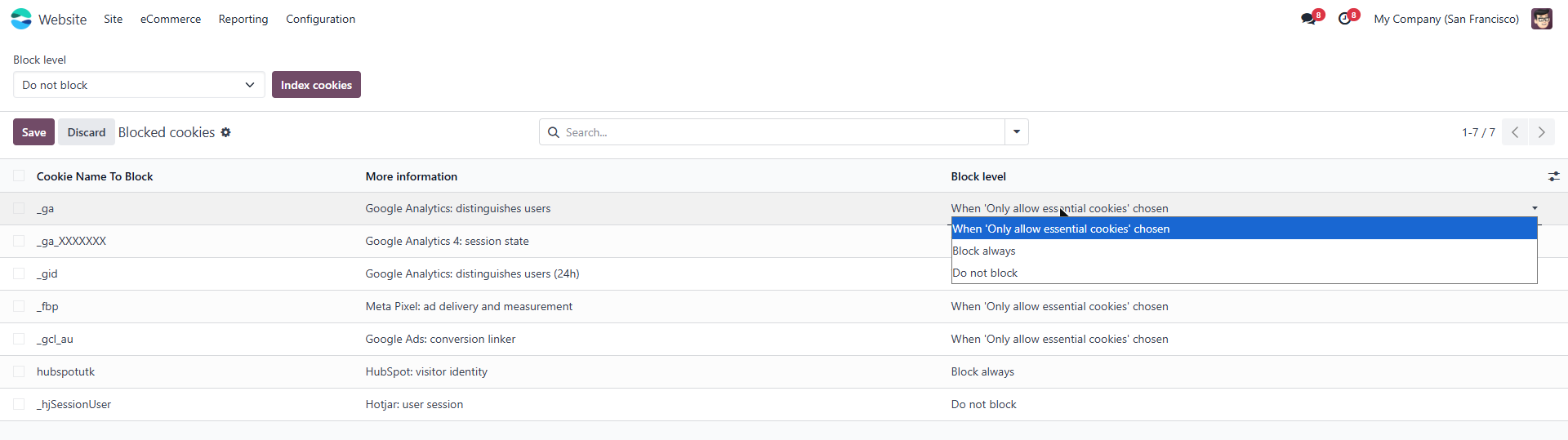
Click the Block level of a cookie row and choose:
- When 'Only allow essential cookies' chosen: the usual setting for analytics and marketing cookies. The cookie is allowed only after the visitor clicks "Allow all cookies".
- Block always: the cookie is never stored.
- Do not block: the cookie stays on the list for your records but is not blocked.
Edit the
/cookie-policy page with the normal website editor. The cookie bar
shows its content in the "Cookie Policy" panel, so visitors can read it without leaving
the page. To use another page, pick it in Website → Configuration → Settings
→ Cookies Bar → "Cookie policy page" (visible in developer mode); the cookie bar
follows that choice for each website.
How to use [back]
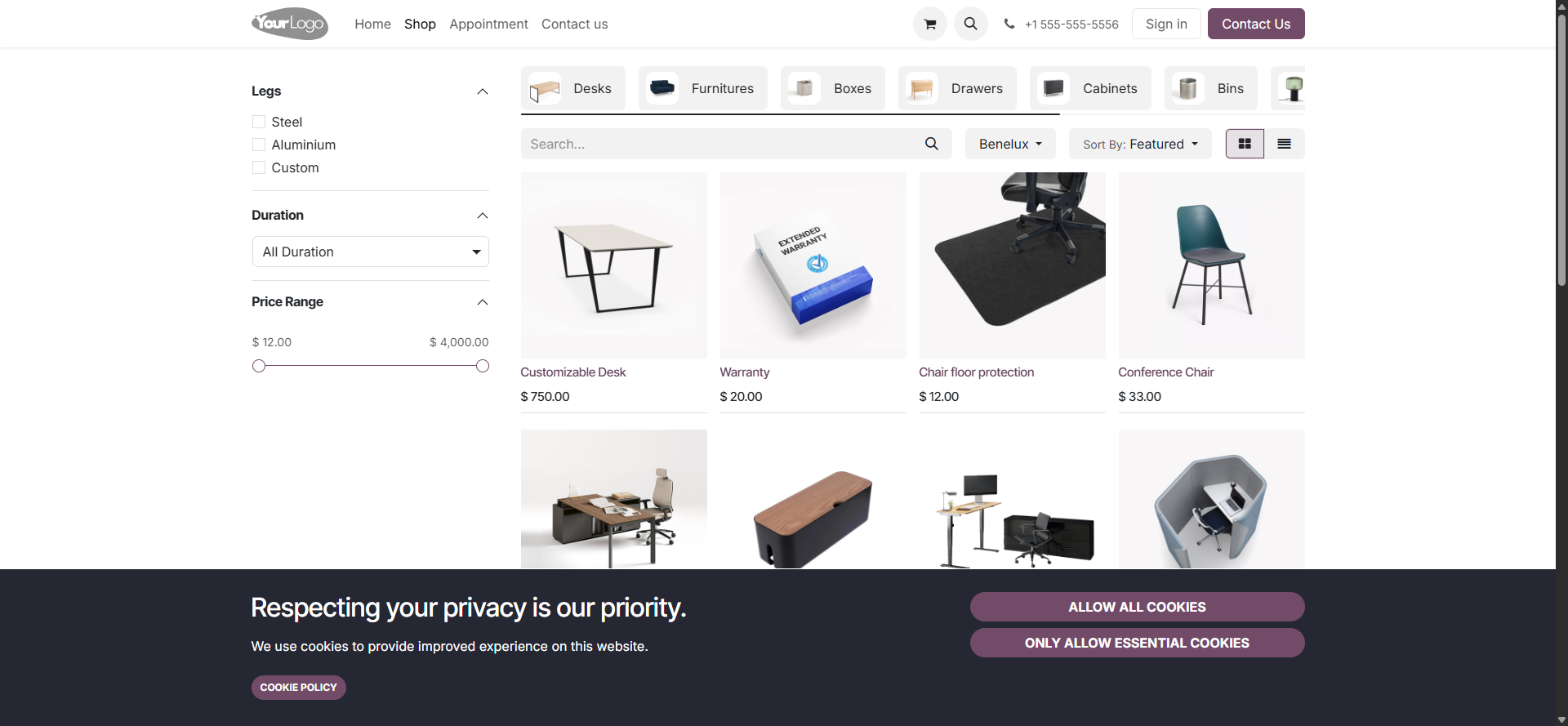
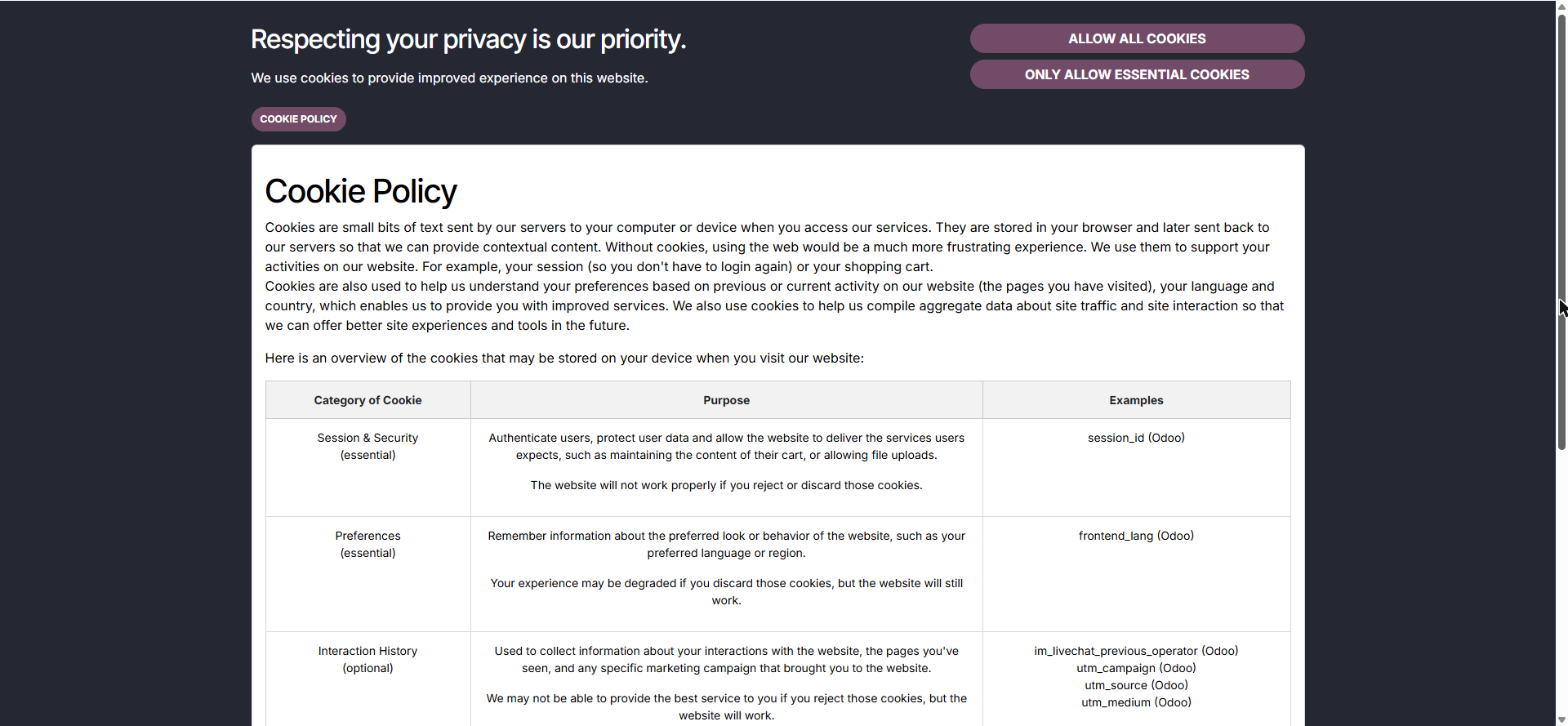
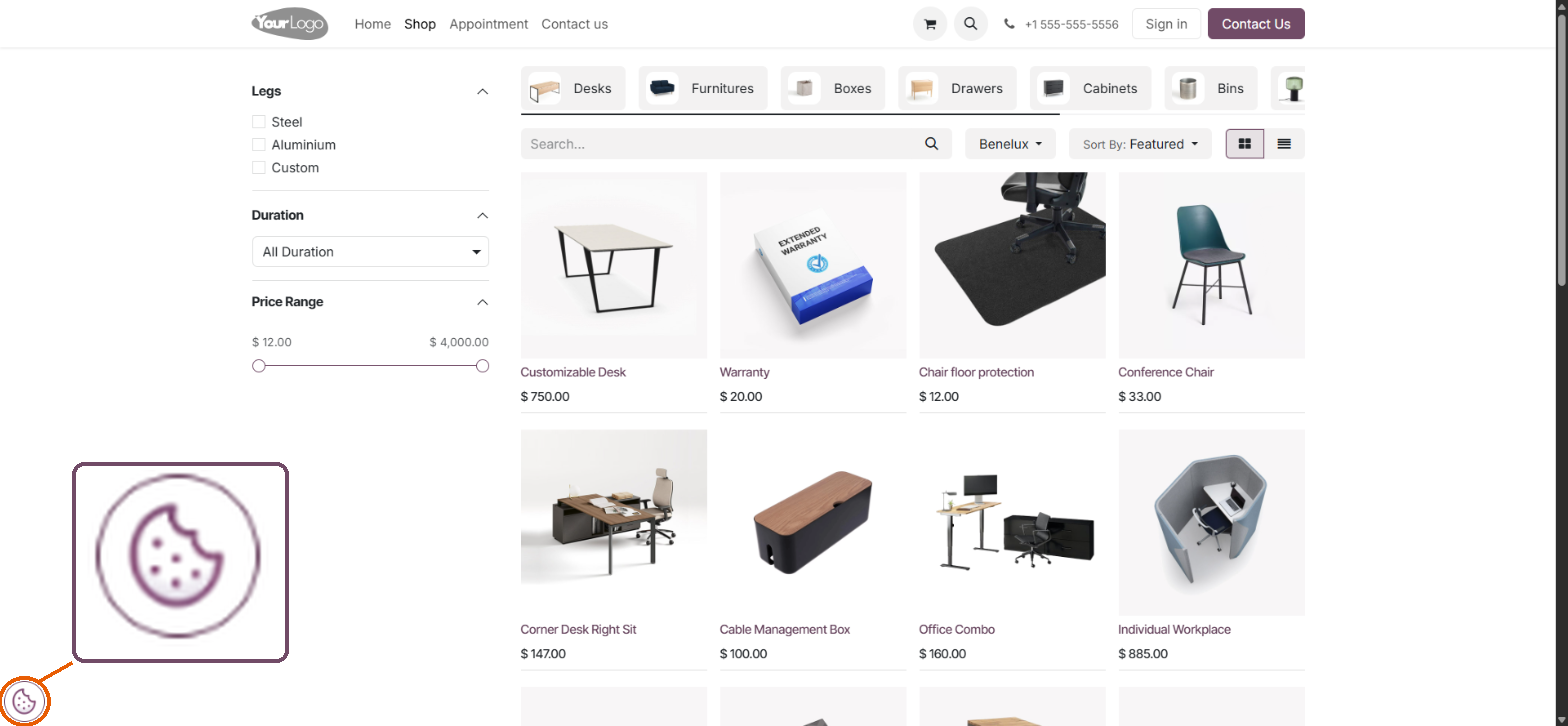
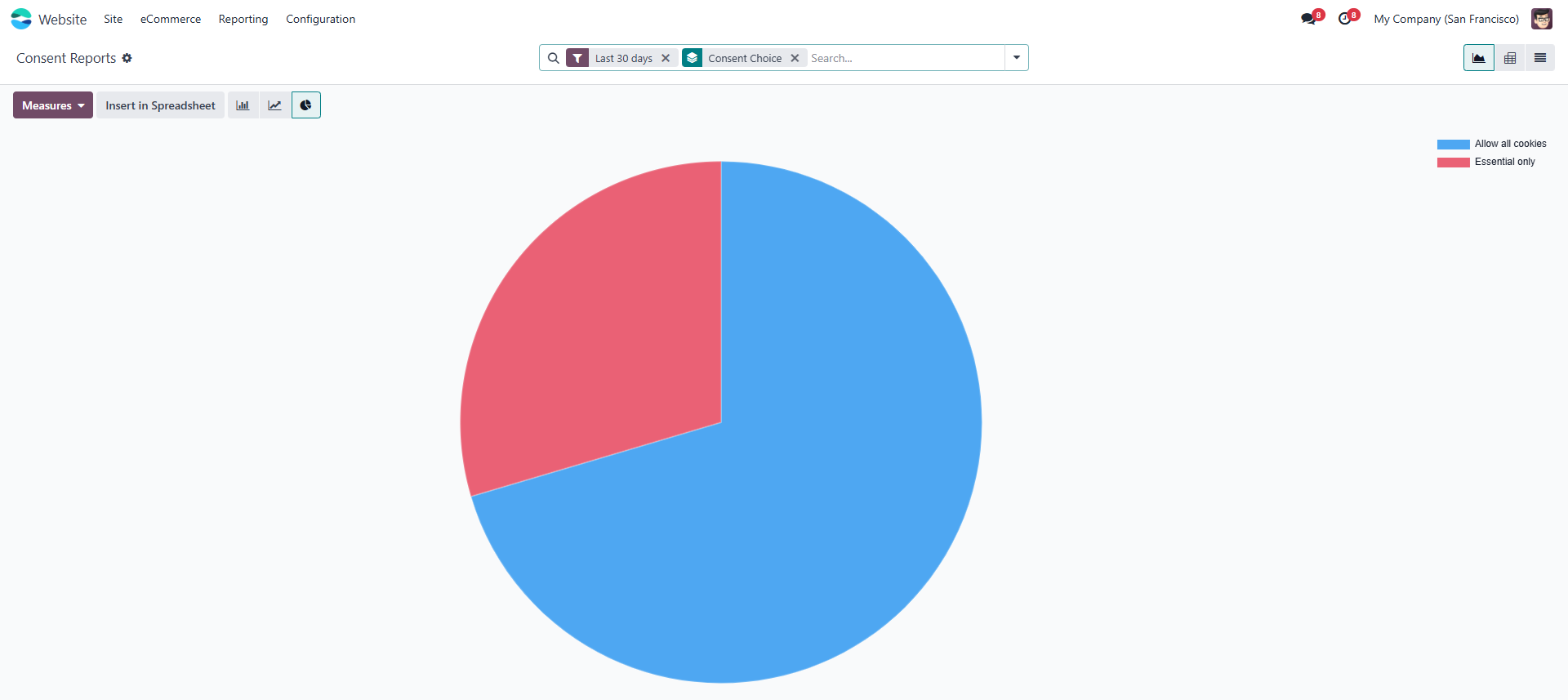
Each IP address has one row per website. If a visitor makes a new choice, their row is updated, so the report always shows each visitor's latest choice.
Menu structure [back]
Website
-> Site
-> Cookie Consent (for website designers)
-> Blocked cookies
-> Consent Settings
-> Reporting
-> Cookie Consent
-> Configuration (administrators only)
-> Settings → Cookies Bar (shortcuts to the pages below)
-> Cookie Consent
-> Blocked cookies
-> Consent Settings
FAQ and troubleshooting [back]
The cookie bar does not appear.
Check that "Cookies Bar" is switched on in Website → Configuration → Settings. If you
have already made a choice, click the cookie icon in the bottom-left corner, or open the site in
a private browser window.
Some users don't see the Cookie Consent menus.
Only website designers ("Website: Editor and Designer") and administrators can see and change the
cookie settings. Give the user that access right in Settings → Users. Designers find the pages
under Website → Site → Cookie Consent, because the Configuration menu is for administrators only.
I have several websites. Can they have different settings?
Yes. Each website has its own popup settings, blocked cookies and consent reports. In Website
→ Configuration → Settings, pick the website at the top and use the shortcuts under
"Cookies Bar". A blocked cookie with an empty Website field applies to all websites; a rule for one
website overrides it, for example to allow a cookie on just that website.
How do I check that a cookie is really blocked?
Open the website, press F12 and go to Application (Chrome) or Storage (Firefox) → Cookies.
Choose "Only allow essential cookies". Cookies set to "When 'Only allow essential cookies' chosen"
are not in the list. Click "Allow all cookies" and they appear.
I changed the blocklist but nothing happened.
Blocklist changes reach visitors within one minute. Reload the page after that.
Some cookies were not found by "Index cookies".
"Index cookies" only finds cookies that are in your browser for the website at that moment.
Visit the pages that load the tracker first (for example a page with a video or a contact form),
then click "Index cookies" again. You can also add a cookie by hand with its exact name.
Can I block Odoo's own session cookie by mistake?
No. Odoo's essential cookies (session_id, frontend_lang, tz, cids, color_scheme and the consent cookie website_cookies_bar) are always allowed and are never offered by "Index cookies",
so logins, language selection and the shopping cart keep working.
Does this work with Google Analytics consent mode?
Yes. Odoo already sends the visitor's choice to Google consent mode. This app adds real
blocking and reporting on top and does not change that integration.
Is storing IP addresses GDPR-compliant?
Keeping a record of consent is allowed under the GDPR. To store as little personal data as
possible, the app shortens every IP address before saving it (the last part is set to zero). You
can switch this off on the Settings page, but we recommend keeping it on.
SprintIT improves its customers' competitiveness and growth potential with Odoo.
We constantly develop new Odoo modules to help our customers run their business more smoothly
and
efficiently.
We regularly publish our new modules in the Odoo App Store.
SprintIT brings together agility, business understanding and a professional way of working.
Our skilled developers can tailor Odoo to meet your needs.
Read more.

We are the first Odoo Gold partner in Finland. We are renowned for our professional developers and we want to tailor the ERP solution for you.